00 - Wprowadzenie
Witaj w przewodniku otPiece, w którym znajdziesz informacje o grze. W grze możesz otworzyć ten przewodnik w dowolnym momencie, klikając jego ikonę w lewym górnym rogu klienta lub używając skrótu Ctrl + W.
01 - Ekwipunek
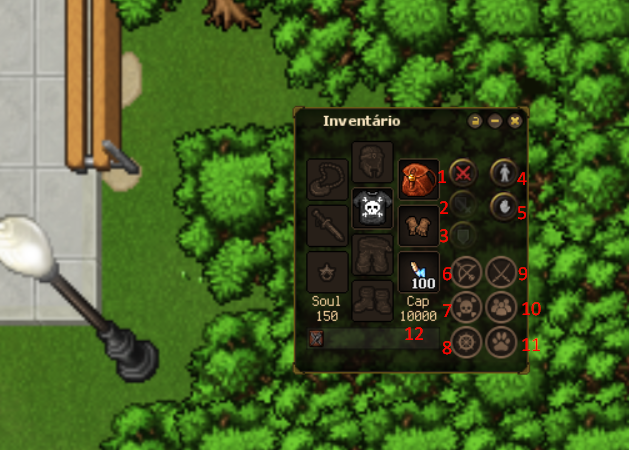
To w ekwipunku umieszczasz swoje wyposażenie: hełm, zbroję, spodnie, buty, broń, plecak, pierścień i naszyjnik. Ponadto to tutaj ustawiasz kilka ważnych opcji i masz dostęp do ikon innych menu, zgodnie z poniższą listą:
Skrót: Ctrl + I.
1 - Włącz ofensywny tryb walki: w tym trybie zadajesz więcej obrażeń, ale też otrzymujesz więcej obrażeń z ataków.
2 - Włącz zrównoważony tryb walki: w tym trybie masz równowagę między atakiem a obroną.
3 - Włącz defensywny tryb walki: w tym trybie otrzymujesz mniej obrażeń z ataków, ale też mniej zadajesz.
4 - Przełącz między walką w miejscu a pościgiem za celem: jeśli ikona pokazuje stojącą postać, twoja postać będzie stać w miejscu podczas ataku; jeśli pokazuje biegnącą postać, twoja postać będzie ścigać atakowane stworzenie.
5 - Przełącz PvP (włączone/wyłączone): jeśli ikona pokazuje otwartą dłoń, nie możesz atakować innych graczy; jeśli pokazuje zaciśniętą pięść, możesz atakować innych graczy. Pamiętaj, że PvP jest dostępne tylko dla graczy na poziomie 50 lub wyższym. Więcej informacji o systemie PvP znajdziesz w dalszej części przewodnika.
6 - Pokaż/ukryj okno umiejętności: więcej informacji w dalszej części.
7 - Pokaż/ukryj okno tasków: więcej informacji w dalszej części.
8 - Pokaż/ukryj okno nawigacji: więcej informacji w dalszej części.
9 - Pokaż/ukryj okno walki: więcej informacji w dalszej części.
10 - Pokaż/ukryj listę przyjaciół: więcej informacji w dalszej części.
11 - Pokaż/ukryj okno peta: więcej informacji w dalszej części.
12 - Udźwig: każdy przedmiot ma wagę. Twój udźwig określa, ile ciężaru możesz nosić w ekwipunku i plecakach.
Skrót: Ctrl + I.
1 - Włącz ofensywny tryb walki: w tym trybie zadajesz więcej obrażeń, ale też otrzymujesz więcej obrażeń z ataków.
2 - Włącz zrównoważony tryb walki: w tym trybie masz równowagę między atakiem a obroną.
3 - Włącz defensywny tryb walki: w tym trybie otrzymujesz mniej obrażeń z ataków, ale też mniej zadajesz.
4 - Przełącz między walką w miejscu a pościgiem za celem: jeśli ikona pokazuje stojącą postać, twoja postać będzie stać w miejscu podczas ataku; jeśli pokazuje biegnącą postać, twoja postać będzie ścigać atakowane stworzenie.
5 - Przełącz PvP (włączone/wyłączone): jeśli ikona pokazuje otwartą dłoń, nie możesz atakować innych graczy; jeśli pokazuje zaciśniętą pięść, możesz atakować innych graczy. Pamiętaj, że PvP jest dostępne tylko dla graczy na poziomie 50 lub wyższym. Więcej informacji o systemie PvP znajdziesz w dalszej części przewodnika.
6 - Pokaż/ukryj okno umiejętności: więcej informacji w dalszej części.
7 - Pokaż/ukryj okno tasków: więcej informacji w dalszej części.
8 - Pokaż/ukryj okno nawigacji: więcej informacji w dalszej części.
9 - Pokaż/ukryj okno walki: więcej informacji w dalszej części.
10 - Pokaż/ukryj listę przyjaciół: więcej informacji w dalszej części.
11 - Pokaż/ukryj okno peta: więcej informacji w dalszej części.
12 - Udźwig: każdy przedmiot ma wagę. Twój udźwig określa, ile ciężaru możesz nosić w ekwipunku i plecakach.
02 - Informacje o Zdrowiu
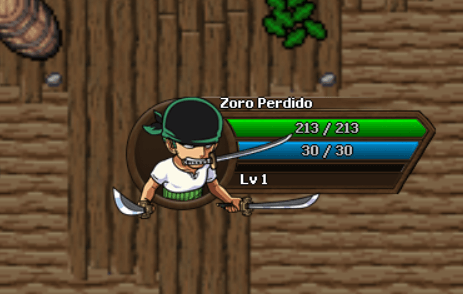
To menu pokazuje informacje o twojej postaci: imię, poziom, pasek życia, pasek energii oraz procent doświadczenia potrzebny do następnego poziomu. Pamiętaj, aby być zawsze najedzonym — wtedy twoje życie i energia się regenerują.
03 - Lista VIP
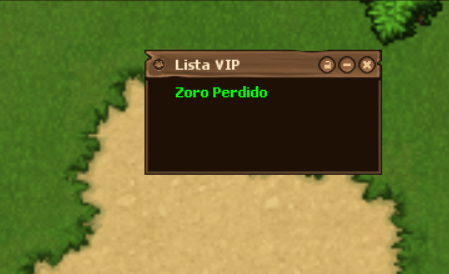
To twoja lista przyjaciół. Aby dodać lub usunąć osoby, kliknij wewnątrz niej prawym przyciskiem myszy. Aby rozpocząć rozmowę z przyjacielem, kliknij dwukrotnie jego imię.
Skrót: Ctrl + P.
Skrót: Ctrl + P.
04 - Walka
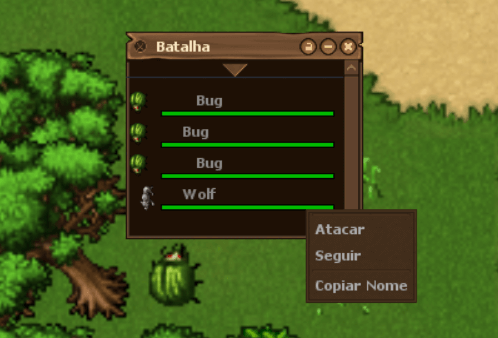
To lista graczy, NPC i potworów znajdujących się wokół ciebie. Jeśli klikniesz nazwę potwora, zaczniesz go atakować. Możesz też kliknąć nazwę stworzenia prawym przyciskiem myszy, aby zobaczyć listę możliwych akcji.
Skrót: Ctrl + B.
Skrót: Ctrl + B.
05 - Minimapa
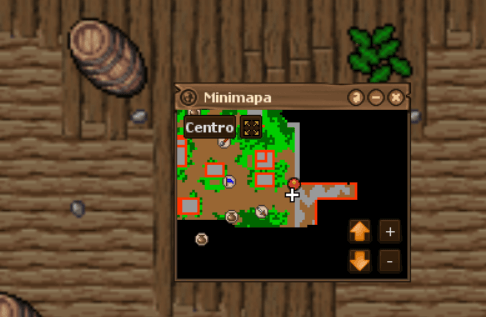
Pokazuje minimapę gry, po której możesz się poruszać i dodawać znaczniki (prawy przycisk myszy). Biały znak plusa wskazuje twoją pozycję.
Skrót: Ctrl + M.
Skrót do powiększenia: Ctrl + Shift + M.
Skrót: Ctrl + M.
Skrót do powiększenia: Ctrl + Shift + M.
06 - Umiejętności
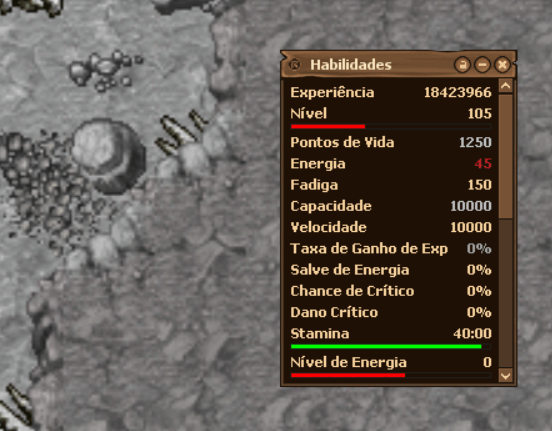
To menu pokazuje wszystkie twoje umiejętności i postęp w każdej z nich.
Skrót: Ctrl + S.
Skrót: Ctrl + S.
07 - Nawigacja
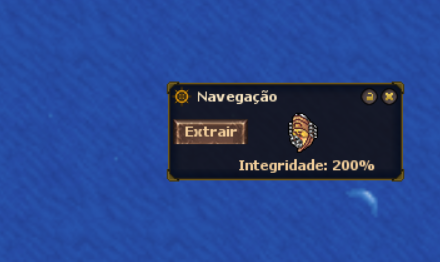
W tym oknie możesz zobaczyć wytrzymałość swojej łodzi oraz ją zwinąć.
08 - Task
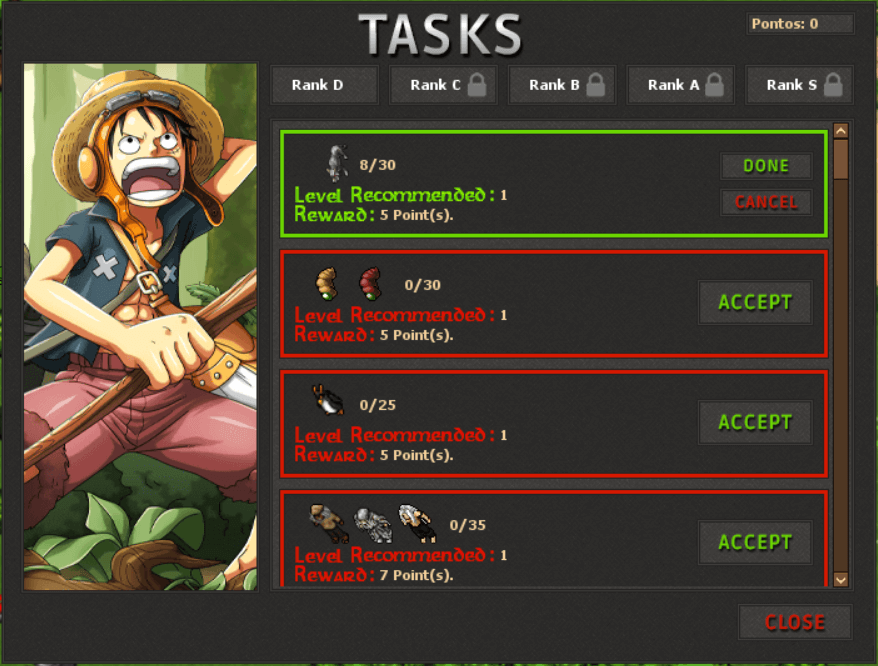
W tym oknie możesz przeglądać listę tasków, rozpoczynać je, anulować i kończyć. Taski polegają na pokonaniu określonej liczby potworów, aby zdobyć Task Points, za które można kupować przedmioty u NPC Taskera.
Skrót: Ctrl + T.
Skrót: Ctrl + T.
09 - Chodzenie

Aby chodzić, używaj strzałek na klawiaturze lub kliknij miejsce, do którego chcesz się udać.
10 - Przenoszenie Przedmiotów

Aby przenieść przedmiot, kliknij go lewym przyciskiem myszy i przeciągnij w wybrane miejsce.
11 - Atakowanie Potworów

Aby zaatakować potwora, kliknij go prawym przyciskiem myszy lub kliknij jego nazwę w menu Walki.
12 - Używanie Umiejętności

Każda postać ma swój zestaw umiejętności. Aby ich użyć, wystarczy kliknąć ich obrazek lub użyć skrótów klawiszowych F1, F2, F3 itd. Własne skróty możesz skonfigurować w oknie skrótów, które otwiera się kombinacją Ctrl + K.
13 - Zbieranie Łupów

Gdy pokonasz potwora, może on zostawić przedmioty. Aby je zebrać, kliknij prawym przyciskiem myszy torbę upuszczoną przez pokonanego potwora, a następnie kliknij prawym przyciskiem przedmioty, które chcesz podnieść.
14 - Wspinanie się po Drabinach

Aby wspiąć się po niektórych linach i drabinach, kliknij prawym przyciskiem myszy ich podstawę.
15 - Zmiana Skórki

Swoją skórkę możesz wybrać w menu 'Zmień strój', które pojawia się, gdy przytrzymasz Ctrl i klikniesz prawym przyciskiem myszy swoją postać. Skórki są sprzedawane w sklepie gry.
16 - Informacje o Przedmiotach

Możesz zobaczyć informacje o dowolnym przedmiocie, używając na nim opcji 'Spójrz'. Wystarczy kliknąć przedmiot oboma przyciskami myszy jednocześnie. Innym sposobem jest przytrzymanie klawisza CTRL, kliknięcie przedmiotu prawym przyciskiem i wybranie 'Spójrz'.
17 - Żeglowanie

Aby żeglować po oceanie, musisz najpierw zdobyć łódź. Pierwszą łódź zdobędziesz w queście 'Building a Cedar Boat'; poza nią istnieją 3 modele łodzi do kupienia u NPC Boatman oraz 3 kolejne dostępne w sklepie gry. Aby aktywować łódź, kliknij ją prawym przyciskiem myszy. Z aktywną łodzią możesz wypłynąć na ocean z dowolnego portu, po prostu idąc w stronę wody.
18 - Kanały
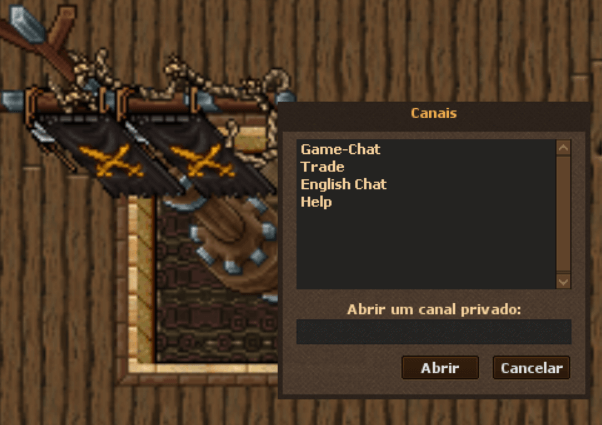
Istnieje wiele kanałów czatu do rozmów z innymi graczami. Aby uzyskać do nich dostęp, naciśnij Ctrl + O na klawiaturze.
Podstawowe kanały to:
Trade - służy do handlu z innymi graczami
Help - służy do zadawania pytań
Game-Chat - służy do rozmów z innymi graczami.
Podstawowe kanały to:
Trade - służy do handlu z innymi graczami
Help - służy do zadawania pytań
Game-Chat - służy do rozmów z innymi graczami.
19 - Dziennik Questów
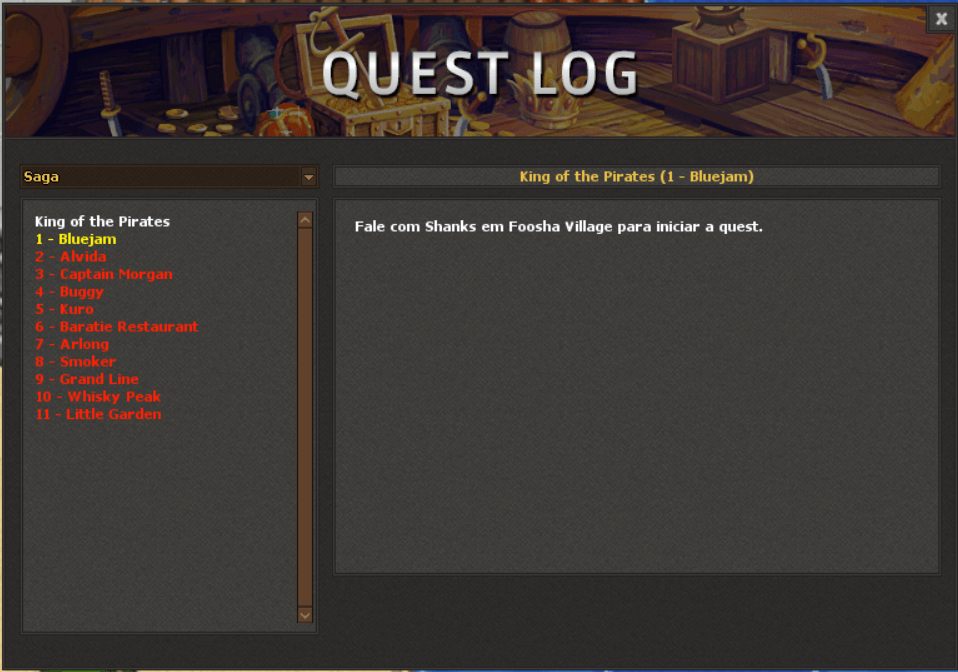
Bardzo ważną częścią otPiece są sagi i questy. Cały rejestr questów zobaczysz, otwierając 'Quest Log' znajdujący się w prawym górnym rogu klienta. Questy, których jeszcze nie zacząłeś, są czerwone, te w trakcie — żółte, a ukończone — zielone. W niektórych questach możesz użyć przycisku 'Pokaż na mapie', aby dodać na mapie znacznik pokazujący, dokąd się udać w bieżącym etapie. Pamiętaj, że znacznik nie zawsze pojawia się na tym samym piętrze mapy, na którym jesteś — może być konieczna zmiana piętra na minimapie.
20 - Pety

Pety pomagają zbierać przedmioty upuszczane przez potwory i mogą też zanosić je do twojego depozytu. Każdy pet ma ograniczoną liczbę przedmiotów, które może zebrać, oraz czas potrzebny na zaniesienie ich do depotu. Aby wybrać przedmioty, które twój pet ma zbierać, otwórz okno peta przyciskiem w ekwipunku, kliknij "Konfiguruj" i użyj wyszukiwarki, aby znaleźć przedmioty do zbierania. Peta zdobędziesz w queście Postman, kupując u NPC Events Seller lub w sklepie gry.
21 - Wymiana

Wymiana to bezpieczny sposób handlu przedmiotami z innymi graczami. Aby wymienić się z kimś, przytrzymaj Ctrl, kliknij prawym przyciskiem przedmiot, który chcesz wymienić, wybierz 'Wymień z' i kliknij gracza, z którym chcesz się wymienić. Otworzy się okno wymiany, w którym możesz ją zaakceptować lub anulować.
22 - Domy
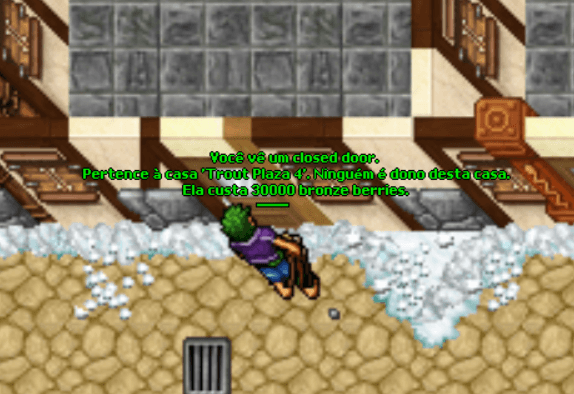
W grze istnieją domy, które mogą kupować gracze — wejść do nich może tylko właściciel i zaproszeni przez niego gracze. Przedmioty zostawione na podłodze lub w dowolnym miejscu w domu pozostają tam nawet po Server Save. Aby kupić dom, znajdź wolny, stań przed jego drzwiami i użyj komendy '!buyhouse'. Domy mogą kupować tylko gracze Premium na poziomie 50 lub wyższym.
23 - Ulepszone Przedmioty
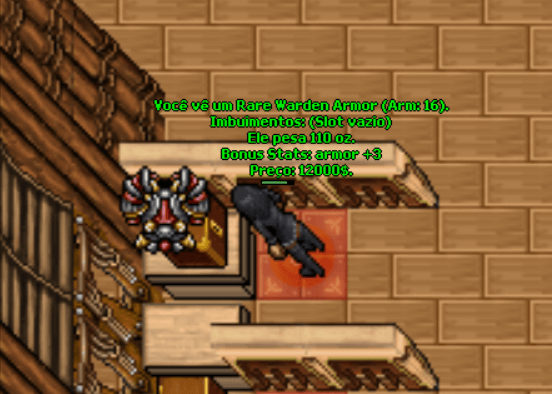
Z każdego potwora w otPiece istnieje szansa na zdobycie ulepszonych przedmiotów. Mają one dodatkowe atrybuty oraz przedrostek w nazwie wskazujący ich poziom rzadkości. Istnieje 5 poziomów rzadkości: uncommon, fine, rare, epic i legendary — każdy trudniejszy do zdobycia niż poprzedni.
24 - Imbuowanie
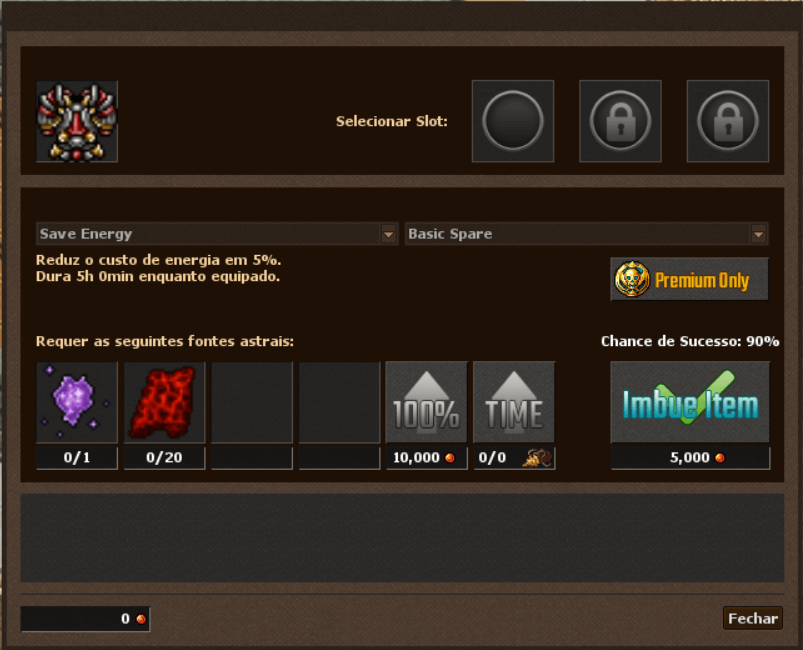
Przedmioty z pustymi slotami (liczba slotów widoczna po użyciu 'Spójrz' na przedmiocie) można imbuować, nadając im specjalne atrybuty. Aby imbuować przedmiot, musisz najpierw ukończyć quest 'The Knowledge to Imbuing', a następnie kupić Imbuing Shrine w sklepie gry. Pamiętaj, że Imbuing Shrine można ustawić tylko wewnątrz domu, więc musisz mieć własny dom lub być do jakiegoś zaproszonym.
25 - Maszyna Ulepszeń
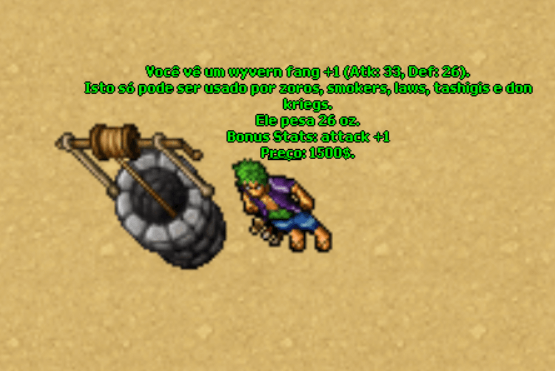
Przedmioty do noszenia można ulepszać w Maszynie Ulepszeń (Upgrade Machine), nadając im przyrostek +1, +2, +3... aż do +10 i zwiększając ich atak, obronę i pancerz. Ulepszanie odbywa się w interfejsie maszyny (użycie orba bezpośrednio na przedmiocie już nie działa): skorzystaj z Upgrade Machine rozmieszczonych na mapie albo kup własną w sklepie gry i ustaw ją w domu — musisz więc mieć własny dom lub być do jakiegoś zaproszonym.
W oknie wybierz przedmiot, aby zobaczyć szansę powodzenia, wymaganego orba i koszt próby w goldzie. Każdy zakres ulepszeń wymaga innego tieru orba: Upgrade Orb (+1 do +3), Upgrade Orb 2 (+4 i +5), Upgrade Orb 3 (+6 i +7) oraz Upgrade Orb 4 (+8 do +10). Im wyższy poziom, tym mniejsza szansa — a nieudana próba może obniżyć poziom przedmiotu. Możesz dopłacić gold, aby PODWOIĆ szansę próby i/lub OCHRONIĆ przedmiot, zyskując 33% szansy na zachowanie poziomu przy porażce.
Maszyna pozwala też ŁĄCZYĆ orby: połącz orby niższego tieru z goldem, aby stworzyć orba wyższego tieru z 50% szansą powodzenia. Zaznaczając 'Gwarancja', fuzja nigdy nie zawodzi — kosztem 1 Pirate Coin. Upgrade Orbs można zdobyć w questach, z potworów lub od graczy profesji Blacksmith (Kowal).
W oknie wybierz przedmiot, aby zobaczyć szansę powodzenia, wymaganego orba i koszt próby w goldzie. Każdy zakres ulepszeń wymaga innego tieru orba: Upgrade Orb (+1 do +3), Upgrade Orb 2 (+4 i +5), Upgrade Orb 3 (+6 i +7) oraz Upgrade Orb 4 (+8 do +10). Im wyższy poziom, tym mniejsza szansa — a nieudana próba może obniżyć poziom przedmiotu. Możesz dopłacić gold, aby PODWOIĆ szansę próby i/lub OCHRONIĆ przedmiot, zyskując 33% szansy na zachowanie poziomu przy porażce.
Maszyna pozwala też ŁĄCZYĆ orby: połącz orby niższego tieru z goldem, aby stworzyć orba wyższego tieru z 50% szansą powodzenia. Zaznaczając 'Gwarancja', fuzja nigdy nie zawodzi — kosztem 1 Pirate Coin. Upgrade Orbs można zdobyć w questach, z potworów lub od graczy profesji Blacksmith (Kowal).
26 - Exercise Dummies
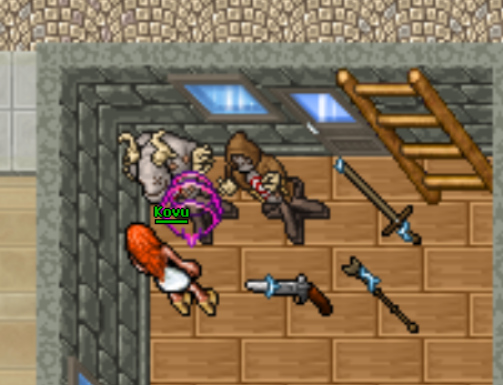
Istnieje sposób na trenowanie umiejętności z podwójną szybkością: Exercise Dummies znajdujące się w akademiach treningowych. Aby z nich korzystać, kup Exercise Weapon u NPC Gym lub w sklepie gry i użyj jej, aby otrzymać ograniczoną liczbę ładunków ataku. Aby zużywać ładunki, kliknij, by zaatakować dummy'ego, i pozostań obok niego, aż ładunki się skończą.
Oprócz dummies w akademiach można kupić w sklepie gry własne dummies do postawienia w domu. Poza niestandardowym wyglądem pozwalają one trenować o 10% szybciej niż zwykłe dummies.
Wszyscy gracze mogą używać wszystkich exercise weapons, bez ograniczeń typu postaci, ale wynik treningu zależy od cech danej postaci.
Oprócz dummies w akademiach można kupić w sklepie gry własne dummies do postawienia w domu. Poza niestandardowym wyglądem pozwalają one trenować o 10% szybciej niż zwykłe dummies.
Wszyscy gracze mogą używać wszystkich exercise weapons, bez ograniczeń typu postaci, ale wynik treningu zależy od cech danej postaci.
27 - Wprowadzenie
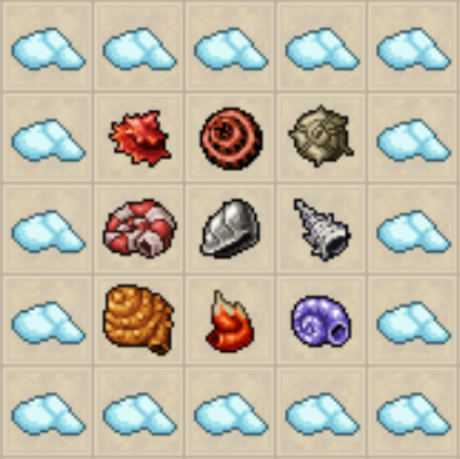
Diale to muszle wydobywane z podniebnych wysp, mające tajemnicze moce. Możesz je zdobyć u NPC Taskera w zamian za Task Points. Diale mają ładunki i można je uzupełniać za pomocą Pieces of Heaven. Listę wszystkich dostępnych diali znajdziesz w tej sekcji przewodnika.
28 - Breath Dial

Ten dial ma moc gaszenia pól, takich jak ogień, trucizna, energia itp.
29 - Flame Dial

Ten dial ma moc wywołania wielkiej eksplozji ognia.
30 - Heat Dial

Ten dial ma moc podpalenia obszaru.
31 - Milky Dial

Ten dial ma moc stworzenia ściany z chmur, która blokuje przejście stworzeń, ale nie blokuje umiejętności.
32 - Axe Dial

Ten dial ma moc wykonania 3 ataków dystansowych na wybrany cel.
33 - Impact Dial

Ten dial ma moc zaatakowania wybranego celu silnym uderzeniem.
34 - Reject Dial

Ten dial ma moc zaatakowania wybranego celu uderzeniem jeszcze potężniejszym niż impact dial.
35 - Jet Dial

Ten dial ma moc wystrzelenia magicznego ataku w cel na odległość.
36 - Iron Dial

Ten dial ma moc stworzenia żelaznej ściany, która blokuje przejście stworzeń i umiejętności.
37 - Wprowadzenie
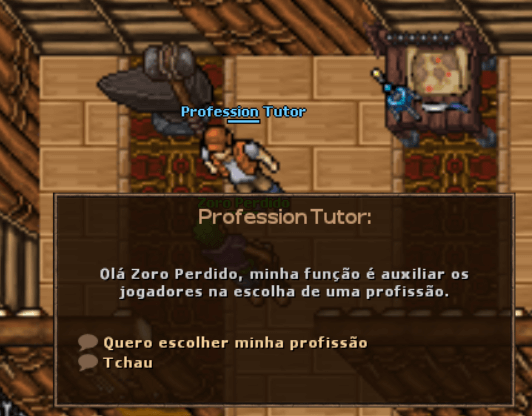
W otPiece istnieją trzy profesje, które dają graczowi różne umiejętności i dostępy: Blacksmith (Kowal), Explorer (Odkrywca) i Cooker (Kucharz). Między Kowalem a Odkrywcą wybierasz u NPC Profession Tutor na Trade Island, a Kucharzem zostaniesz u NPC Cooking Tutor w Loguetown. Po wybraniu profesji nie można już zmienić decyzji.
38 - Kowal
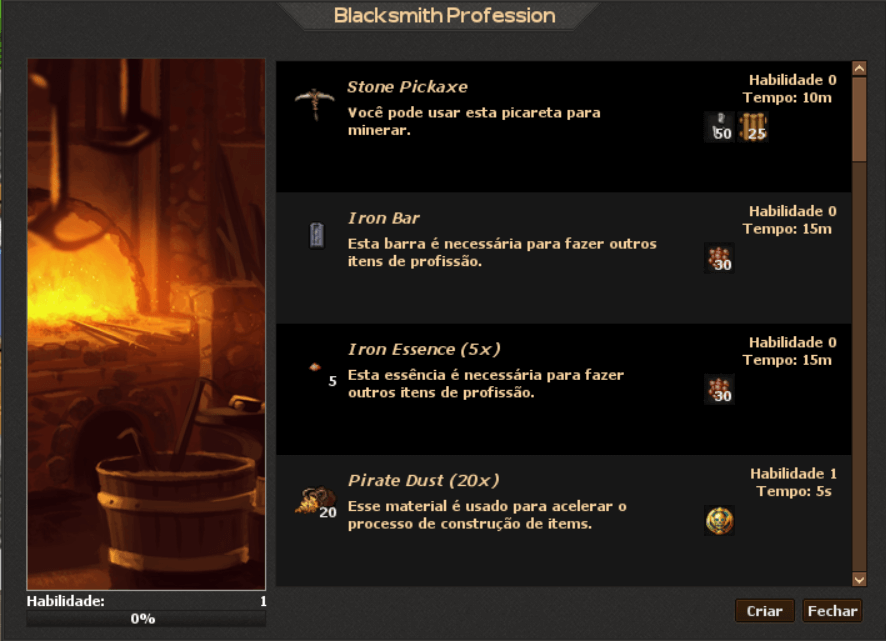
Kowale są mistrzami górnictwa i wytwarzania przedmiotów, takich jak Upgrade Orbs i kilofy; potrafią też produkować przedmioty potrzebne do imbuowania, a nawet Akuma Keys. Do produkcji kowale potrzebują 'Blacksmith Tools' (do kupienia w sklepie gry) oraz domu, w którym je ustawią. Mając 'Blacksmith Tools' w domu, wystarczy kliknąć je prawym przyciskiem, aby zobaczyć wszystkie opcje profesji.
Wiele blueprintów Blacksmith — takich jak Upgrade Orbs, Silver Bar i kilofy — zdobywasz, kupując blueprint u NPC Eladon Mastermind; bardziej zaawansowane blueprinty znajdziesz w skarbach wykopanych Item Finderami.
Wiele blueprintów Blacksmith — takich jak Upgrade Orbs, Silver Bar i kilofy — zdobywasz, kupując blueprint u NPC Eladon Mastermind; bardziej zaawansowane blueprinty znajdziesz w skarbach wykopanych Item Finderami.
39 - Odkrywca
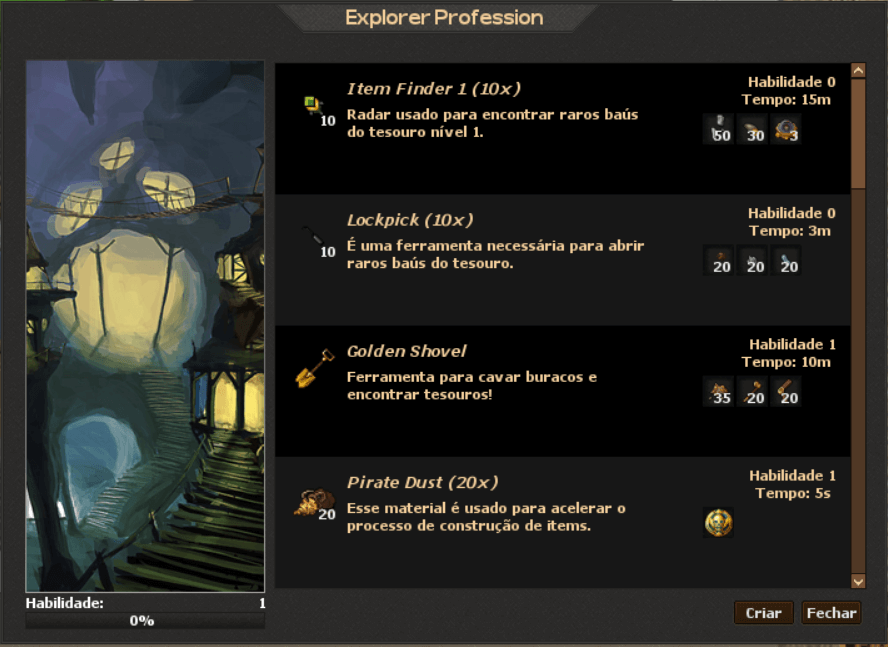
Odkrywcy to poszukiwacze przygód z ogromnym doświadczeniem w znajdowaniu ukrytych skarbów. Robią to za pomocą przedmiotów, które sami wytwarzają: Item Finderów, łopat, Bells i plecaków do przechowywania tego wszystkiego. Do wytwarzania odkrywcy potrzebują 'Explorer Table' (do kupienia w sklepie gry) oraz domu, w którym ją ustawią. Mając 'Explorer Table' w domu, wystarczy kliknąć ją prawym przyciskiem, aby zobaczyć wszystkie opcje profesji.
Specjalnością Odkrywcy jest linia Bells — progresja pięciu tierów: Bronze, Silver, Golden, Diamond i Jade. Konsumując każdy Bell po kolei, postać gromadzi moc Divine Bell, która zwiększa częstotliwość pojawiania się potwora, na którego polujesz (im wyższy tier, tym większy bonus). Aby wytworzyć każdy Bell, musisz nauczyć się jego blueprintu i zebrać fragmenty danego tieru. Item Findery mają również pięć poziomów (1 do 5): im wyższy poziom, tym rzadsze i cenniejsze skarby lokalizuje. Blueprint Bronze Bell oraz blueprinty Item Finder 3, 4 i 5 sprzedaje NPC Eladon Mastermind; blueprinty Silver, Golden, Diamond i Jade Bell znajdziesz w skarbach wykopanych odpowiednim Item Finderem (poziomy 2, 3, 4 i 5).
Specjalnością Odkrywcy jest linia Bells — progresja pięciu tierów: Bronze, Silver, Golden, Diamond i Jade. Konsumując każdy Bell po kolei, postać gromadzi moc Divine Bell, która zwiększa częstotliwość pojawiania się potwora, na którego polujesz (im wyższy tier, tym większy bonus). Aby wytworzyć każdy Bell, musisz nauczyć się jego blueprintu i zebrać fragmenty danego tieru. Item Findery mają również pięć poziomów (1 do 5): im wyższy poziom, tym rzadsze i cenniejsze skarby lokalizuje. Blueprint Bronze Bell oraz blueprinty Item Finder 3, 4 i 5 sprzedaje NPC Eladon Mastermind; blueprinty Silver, Golden, Diamond i Jade Bell znajdziesz w skarbach wykopanych odpowiednim Item Finderem (poziomy 2, 3, 4 i 5).
40 - Kucharz
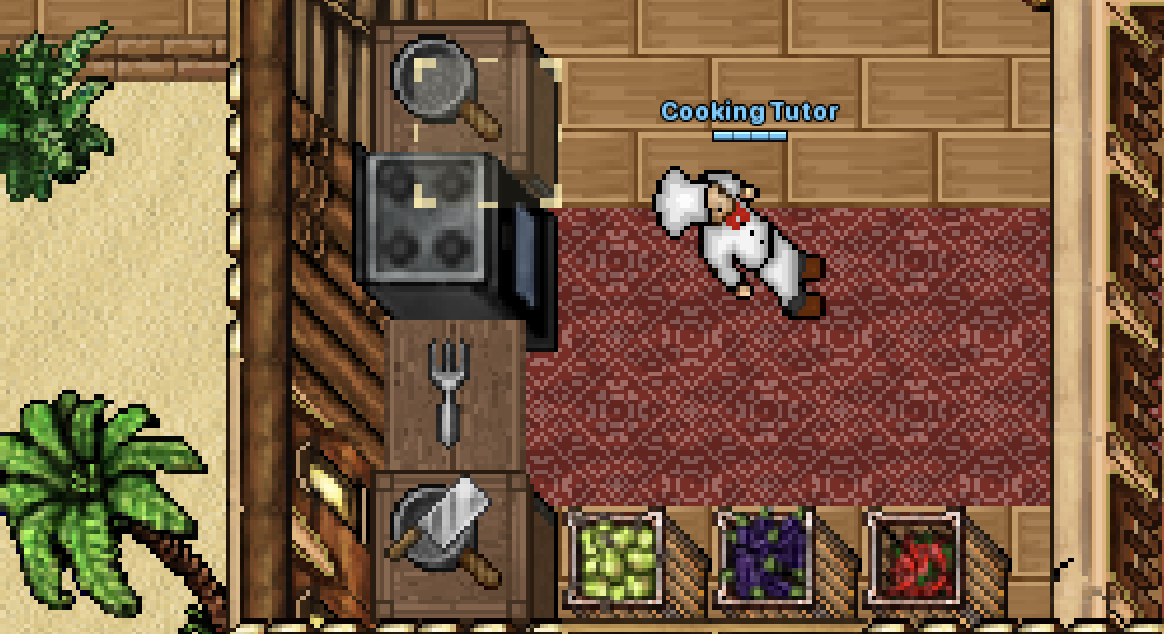
Kliknij kuchenkę, aby gotować: wybierz przepis i ilość. Każde danie daje tymczasowy efekt, a składniki sprzedaje NPC Food. Kto zostanie Kucharzem u NPC Cooking Tutor, zużywa połowę soul, gotuje podwójne porcje i przyrządza najbardziej wyszukane przepisy. Zestaw 'Black Stove' ze sklepu pozwala postawić kuchenkę w twoim domu.
41 - Bazar Postaci
Bazar Postaci pozwala kupować i sprzedawać postacie między graczami za Pirate Coins. W grze otwórz go ikoną wagi w lewym górnym rogu, obok Sklepu.
W zakładce Oferty widzisz wszystkie postacie na sprzedaż, z wyszukiwaniem po nazwie, filtrem profesji i sortowaniem po cenie lub poziomie. Kliknij ofertę, aby zobaczyć pełne dossier postaci: statystyki, umiejętności, wszystkie przedmioty (rzadkie wyróżnione na górze), depot, skiny, czary z ulepszeniami oraz ukończone questy i sagi. Najedź na dowolny przedmiot, aby zobaczyć pełny opis.
Opłata systemowa to 5% ceny (minimum 1 Pirate Coin), potrącana z kwoty, którą otrzymuje sprzedawca. Oferty możesz też przeglądać tutaj na stronie, na podstronie Bazar — ale zakup odbywa się tylko w grze.
W zakładce Oferty widzisz wszystkie postacie na sprzedaż, z wyszukiwaniem po nazwie, filtrem profesji i sortowaniem po cenie lub poziomie. Kliknij ofertę, aby zobaczyć pełne dossier postaci: statystyki, umiejętności, wszystkie przedmioty (rzadkie wyróżnione na górze), depot, skiny, czary z ulepszeniami oraz ukończone questy i sagi. Najedź na dowolny przedmiot, aby zobaczyć pełny opis.
Opłata systemowa to 5% ceny (minimum 1 Pirate Coin), potrącana z kwoty, którą otrzymuje sprzedawca. Oferty możesz też przeglądać tutaj na stronie, na podstronie Bazar — ale zakup odbywa się tylko w grze.
42 - Sprzedaj moją postać
Aby sprzedać, zaloguj się postacią, którą chcesz sprzedać, i otwórz zakładkę "Sprzedaj moją postać". Wymagania: przebywać w protection zone, mieć poziom 50 lub wyższy, bez skulla, bez gildii, bez domu, bez aktywnych ofert na Markecie, poza walką, bez aktywnego buffa lub transformacji i bez Pirate Coins w ekwipunku (najpierw je zdeponuj lub wydaj). Okno pokazuje pełną checklistę w czasie rzeczywistym.
Ustal cenę (liczba całkowita, minimum 10 Pirate Coins) i potwierdź. Zostaniesz ROZŁĄCZONY, a postać zniknie z twojej listy postaci, dopóki oferta jest aktywna — trwa ona, aż postać zostanie sprzedana.
Po sprzedaży otrzymujesz cenę minus opłatę jako Punkty Premium na KONCIE: wypłać je jako Pirate Coins przyciskiem Withdraw w Sklepie, dowolną postacią. Wszystko śledzisz w zakładce "Moje sprzedaże".
Ustal cenę (liczba całkowita, minimum 10 Pirate Coins) i potwierdź. Zostaniesz ROZŁĄCZONY, a postać zniknie z twojej listy postaci, dopóki oferta jest aktywna — trwa ona, aż postać zostanie sprzedana.
Po sprzedaży otrzymujesz cenę minus opłatę jako Punkty Premium na KONCIE: wypłać je jako Pirate Coins przyciskiem Withdraw w Sklepie, dowolną postacią. Wszystko śledzisz w zakładce "Moje sprzedaże".
43 - Kup
Aby kupić, miej Pirate Coins w ekwipunku postaci, którą grasz (zakup pobiera niesione monety), oraz wolne miejsce na jeszcze jedną postać na koncie.
Otwórz dossier oferty, spokojnie wszystko przejrzyj i kliknij Kup. Po potwierdzeniu monety są pobierane, a postać NATYCHMIAST trafia na twoje konto: wyloguj się, a znajdziesz ją na liście postaci.
Postać przychodzi ze wszystkim, co posiada: ekwipunkiem, plecakami, depotem, bankiem, skinami, ulepszeniami czarów, questami i sagami. Fragi i skull są wyzerowane, a postać zostaje usunięta z list gości domów. Każdy zakup jest zapisywany w historii Sklepu.
Otwórz dossier oferty, spokojnie wszystko przejrzyj i kliknij Kup. Po potwierdzeniu monety są pobierane, a postać NATYCHMIAST trafia na twoje konto: wyloguj się, a znajdziesz ją na liście postaci.
Postać przychodzi ze wszystkim, co posiada: ekwipunkiem, plecakami, depotem, bankiem, skinami, ulepszeniami czarów, questami i sagami. Fragi i skull są wyzerowane, a postać zostaje usunięta z list gości domów. Każdy zakup jest zapisywany w historii Sklepu.
44 - Koloseum
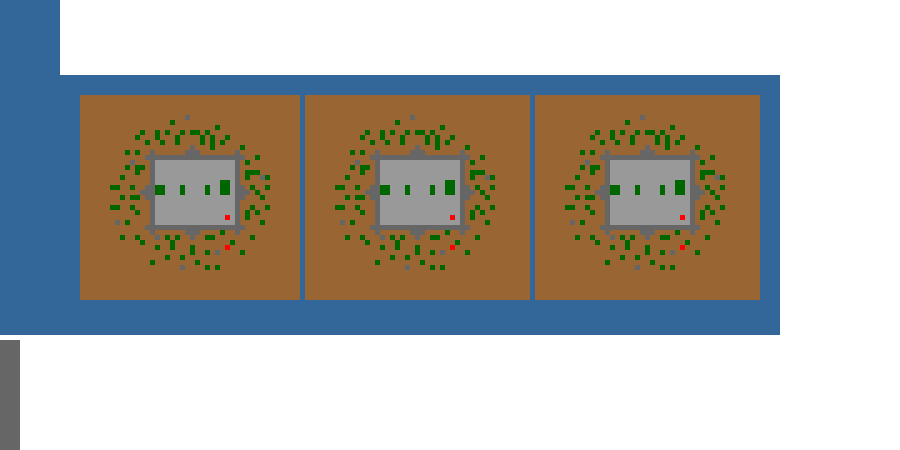
Koloseum to arena przetrwania: zmierz się samotnie z 16 falami coraz silniejszych wrogów i odbierz nagrodę za to, jak daleko zajdziesz.
Aby wziąć udział, porozmawiaj z NPC Gutsem w Trade Center i powiedz "enter". Wejście kosztuje 1 Pirate Coin LUB 30 000 berries, wymaga poziomu 100 lub wyższego i jest możliwe raz na 10 godzin. Działają 3 areny jednocześnie — jeśli wszystkie trzy są zajęte, poczekaj, aż któryś śmiałek skończy.
Na arenie kolejna fala pojawia się, gdy tylko poprzednia zostanie wyeliminowana. Masz łącznie 30 minut. Jeśli padniesz w walce, nie umierasz naprawdę: zostajesz uleczony i odesłany do holu z nagrodami za wszystko, co ukończyłeś.
Aby wziąć udział, porozmawiaj z NPC Gutsem w Trade Center i powiedz "enter". Wejście kosztuje 1 Pirate Coin LUB 30 000 berries, wymaga poziomu 100 lub wyższego i jest możliwe raz na 10 godzin. Działają 3 areny jednocześnie — jeśli wszystkie trzy są zajęte, poczekaj, aż któryś śmiałek skończy.
Na arenie kolejna fala pojawia się, gdy tylko poprzednia zostanie wyeliminowana. Masz łącznie 30 minut. Jeśli padniesz w walce, nie umierasz naprawdę: zostajesz uleczony i odesłany do holu z nagrodami za wszystko, co ukończyłeś.
45 - Nagrody Koloseum
Na koniec wyzwania — pokonany czy zwycięski — otrzymujesz 1 Gold Ingot za każdą ukończoną falę. Ukończenie 5 lub więcej fal daje też 1 punkt, a każda fala powyżej 10. jest warta 1 dodatkowy punkt (ukończenie wszystkich 16 fal daje 7 punktów).
Punkty wymieniasz u samego Gutsa (powiedz "trade"): Upgrade Orb za 10 punktów i Heavy Old Tome za 35 punktów. Powiedz "ranking", aby zobaczyć najlepszych śmiałków serwera.
Gold Ingoty mają specjalne zastosowanie: za 10 z nich NA STAŁE odblokowujesz dostęp do trzech huntów gold ingot (Gargoyle, Feversleep i Hellflayer — poziom 250+, premium). Opłata jest jednorazowa, pobierana automatycznie przy wejściu do którejkolwiek z nich. Gold Ingoty pojawiają się też w skrzyni z nagrodami El Drago i u Event Sellera.
Punkty wymieniasz u samego Gutsa (powiedz "trade"): Upgrade Orb za 10 punktów i Heavy Old Tome za 35 punktów. Powiedz "ranking", aby zobaczyć najlepszych śmiałków serwera.
Gold Ingoty mają specjalne zastosowanie: za 10 z nich NA STAŁE odblokowujesz dostęp do trzech huntów gold ingot (Gargoyle, Feversleep i Hellflayer — poziom 250+, premium). Opłata jest jednorazowa, pobierana automatycznie przy wejściu do którejkolwiek z nich. Gold Ingoty pojawiają się też w skrzyni z nagrodami El Drago i u Event Sellera.
Link skopiowany!
otPiece.com - One Piece MMORPG